Highlighting text to search in Flutterflow
Spoiler: we must use custom code 🤷♀️

I wanted to write a second post related to FlutterFlow, and I remembered that yesterday I had embedded custom code in a project because this feature was not available in FlutterFlow. Among all the custom codes I created, I really liked this one, and it might be helpful to others. In my opinion, it gives a better impression.
We are going to use the substring_highlight package.
First, you must create your Search page and add the text field that will be used to search for the keyword in our database.
The package must receive a list of strings and a string (word to search for) as parameters. In the case of the list of strings, I will send you the names of products from many stores so that you can search for a product with X name.
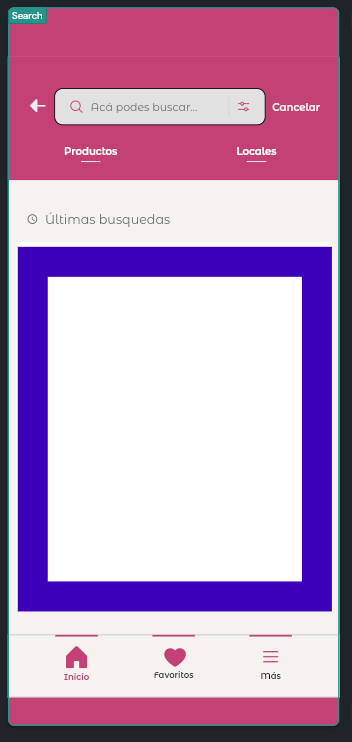
Our custom widget will go in the area indicated.
Next, copy and paste the following code:
| import 'package:substring_highlight/substring_highlight.dart'; | |
| /// Highlight Search | |
| class ....({ | |
| super.key, | |
| this.width, | |
| this.height, | |
| this.textSearch, | |
| this.results | |
| }); | |
| final double? width; | |
| final double? height; | |
| final String? textSearch; | |
| final List<String>? results; | |
| ... | |
| } | |
| class... { | |
| @override | |
| Widget build(BuildContext context) { | |
| final textSearch = widget.textSearch ?? ''; | |
| // Filter based on current search | |
| final matches = widget.results | |
| ?.where((word) => | |
| textSearch.isNotEmpty && | |
| word.toLowerCase().contains(textSearch.toLowerCase())) | |
| .toList(); | |
| // If there are no matches or no text | |
| if (textSearch.isEmpty || matches!.isEmpty) { | |
| return Text("...."); | |
| } | |
| return Container( | |
| width: widget.width, | |
| height: widget.height, | |
| child: ListView.builder( | |
| itemCount: matches.length, | |
| itemBuilder: (context, index) { | |
| final word = matches[index]; | |
| return InkWell( | |
| onTap: () async { | |
| ... | |
| }, | |
| child: Row( | |
| mainAxisSize: MainAxisSize.max, | |
| mainAxisAlignment: MainAxisAlignment.spaceBetween, | |
| children: [ | |
| Padding( | |
| padding: EdgeInsetsDirectional.fromSTEB(0, 16, 0, 16), | |
| child: SubstringHighlight( | |
| text: word, | |
| term: textSearch, | |
| textStyleHighlight: GoogleFonts.montserratAlternates( | |
| fontWeight: FontWeight.w600, | |
| fontSize: 15, | |
| color: const Color(0xFFC44175), | |
| ), | |
| ), | |
| ), | |
| Icon( | |
| Icons.arrow_forward_ios, | |
| color: Color(0xFF6D6D6D), | |
| size: 18, | |
| ), | |
| ]), | |
| ); | |
| }, | |
| ), | |
| ); | |
| } | |
| } |
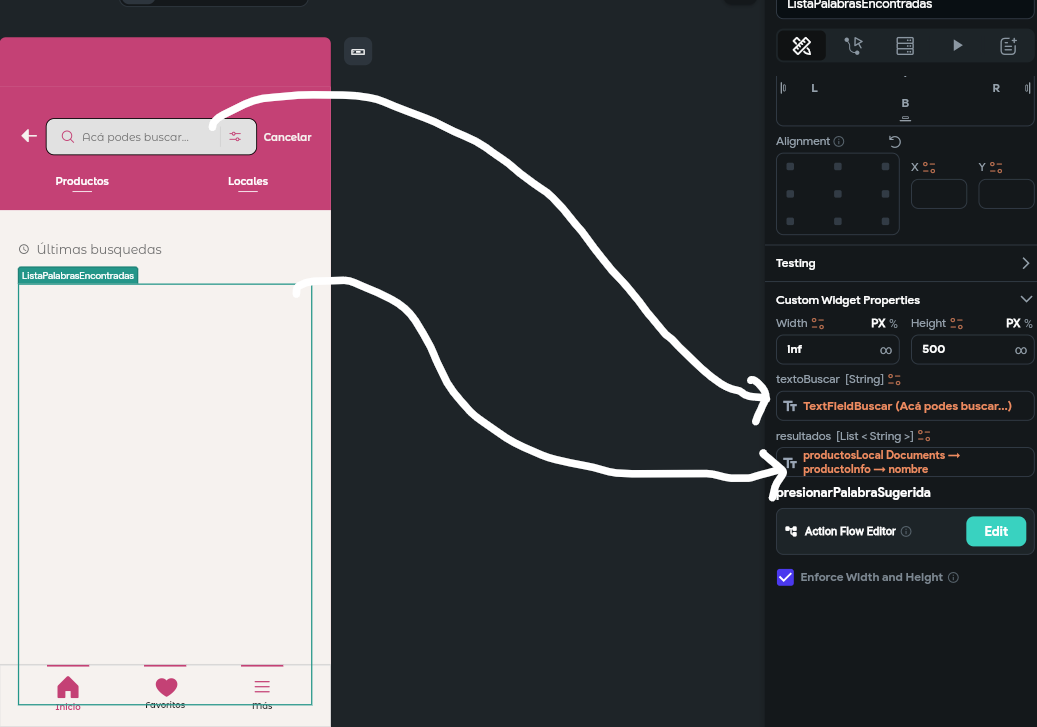
In the image, you can see that I pass the text field and the list of results from the database to the widget. In this widget, I call my Firebase product collections, and the list of results will search by product name.
The result
It looks great for an attractive user experience, doesn’t it? I hope you liked it, saludos🙌.